If you’ve ever tried to set up a useful disk space report in ManageEngine Endpoint Central, you’ll know the built-in options can leave a bit to be desired. We’re a UK-based ManageEngine partner and we recently worked with an IT manager at a hospitality business to get their reporting sorted. It turned out there were a few things tripping them up along the way.
Here’s what they needed, and how we got there.
What They Were Trying to Do
They wanted a weekly email report sent to their service desk showing any devices with less than 10% free disk space. Reasonable enough, but the default Endpoint Central report wasn’t cutting it. On top of that, they had a few extra requirements:
- Separate reports for servers and end user devices, going to different people
- Device names and logged-on user details actually showing up
- Individual drive breakdowns for VMs running multiple disks (C, D, E, F and so on)
The Built-In Report Won’t Do What You Want
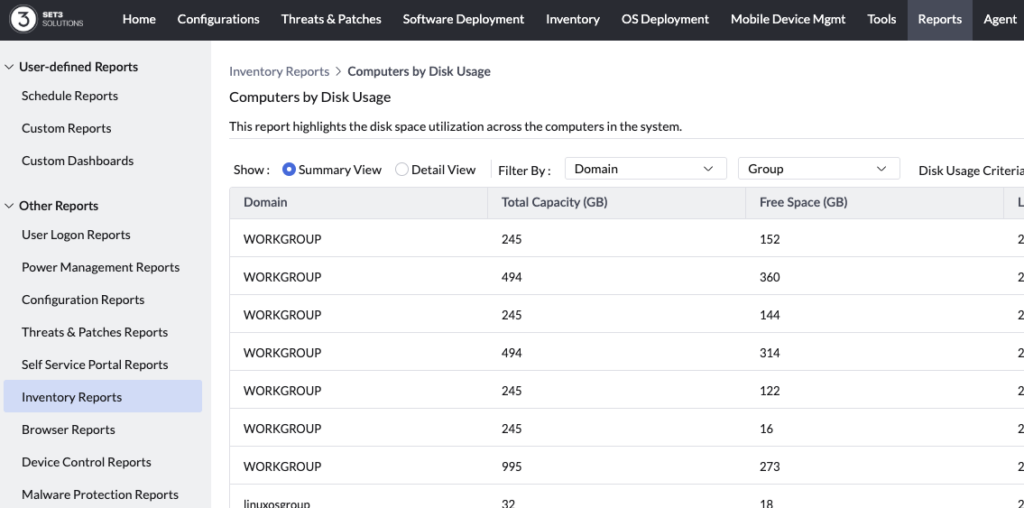
The first thing worth knowing is that the “Computers by Disk Usage” report under Reports > Inventory Reports can’t be filtered by a specific free space percentage. It gives you a general overview, but that’s about it.
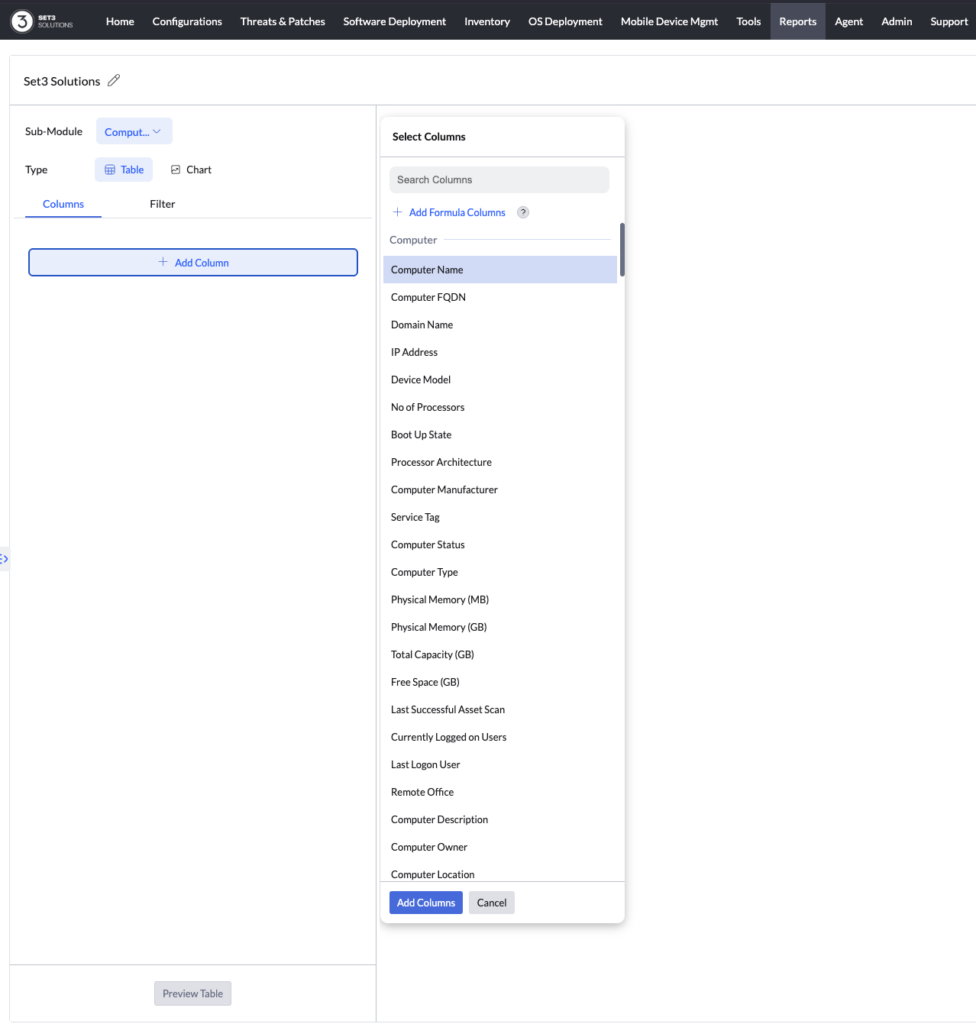
What you need is a custom report. We set one up filtering for endpoints with 10% free space or less. One thing that catches people out here: you also need to add a filter criterion that excludes zero values, otherwise you end up with a lot of unhelpful rows cluttering the results.
This is the kind of thing that’s simple once you know it, but can take a while to figure out on your own. Our technical services team work with Endpoint Central day in, day out, so we tend to get to the bottom of these things fairly quickly.
Device Names and User Details Coming Up Blank
Once the custom report was running, the customer noticed that computer names and logged-on users were showing as blank. This one was straightforward once we knew where to look.
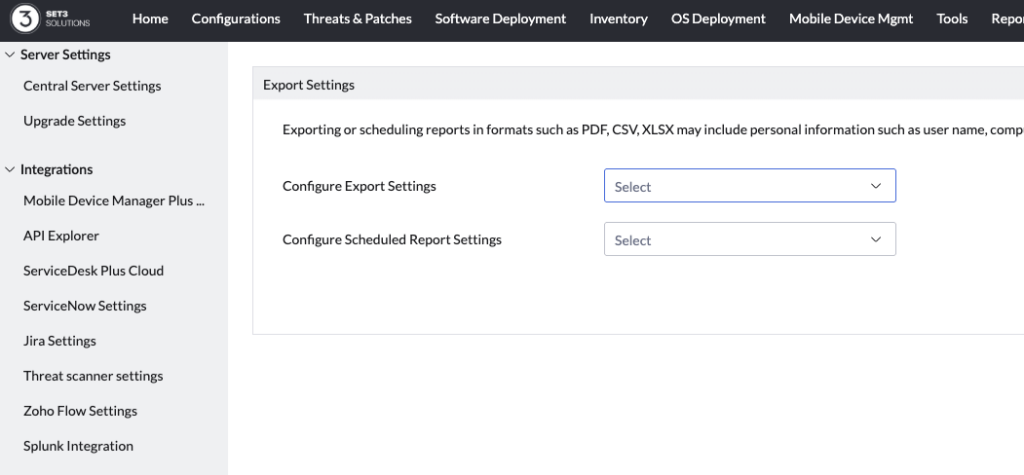
Endpoint Central has PII (Personally Identifiable Information) export settings that can be configured to mask certain data fields. In this case they’d been switched on at some point and forgotten about. Heading to Admin > Export Settings and adjusting those brought all the device and user details back.
VMs With Multiple Drives Not Showing Properly
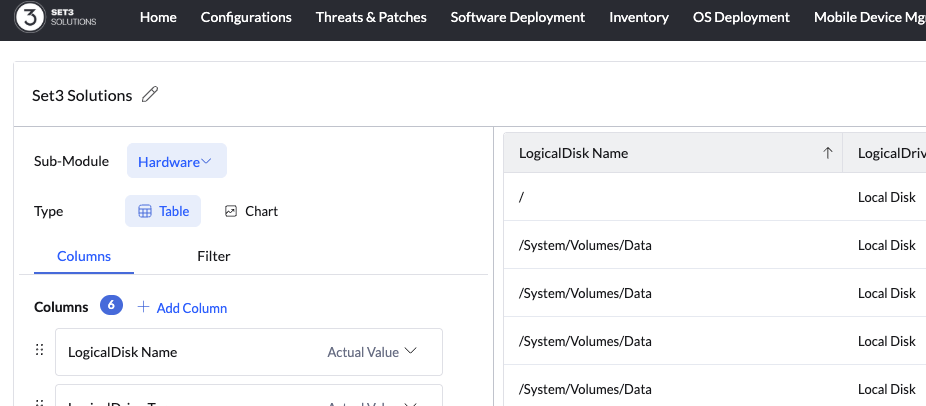
The report was only pulling back one disk entry per machine, which wasn’t much use for VMs with separate C, D, E and F drives. The fix is to add the Logical Disk Name column to your custom report. Once that’s in, each drive shows up as its own row and you get a proper picture of what’s going on across the whole machine.
Worth Knowing: Alerts Can Do This Automatically
Rather than relying on a weekly report, Endpoint Central can be configured to raise a ServiceDesk ticket automatically the moment a device drops below a set disk space threshold. No waiting for the next scheduled run, no manual checking. It’s often a neater solution altogether. Get in touch and we can walk you through it.
Want Help Getting This Set Up?
Endpoint Central’s reporting is more capable than it looks out of the box, but there are a few gotchas along the way, especially in mixed environments with VMs and multiple drives.
As a UK-based ManageEngine partner, we work with organisations of all sizes across the full product suite, from initial setup through to day-to-day support. If you’re wrestling with Endpoint Central reporting, or anything else across the ManageEngine stack, we’d be happy to help.
Drop us a line and we’ll sort it out.
This article is relevant to:
AnalyticsDesktop Mobile
Take the Next Step
Tap into the extensive knowledge of Set3 Solutions, your local UK ManageEngine Technology Partner, and accelerate your ManageEngine experience today.
Contact usOther recent articles in the same category
You may be interested in these other recent articles
Stay Ahead with the Latest Updates for ManageEngine Analytics Plus
29 September 2026
Discover the latest ManageEngine Analytics Plus updates, including new features, fixes, and enhancements.
Read moreLatest Updates for ManageEngine Endpoint Central
28 September 2026
Discover the latest Endpoint Central updates, including new features, fixes, and enhancements.
Read moreStay Ahead with the Latest Updates for ManageEngine OpManager
23 September 2026
Discover the latest OpManager updates, including new features, fixes, and enhancements.
Read moreLatest Updates for ManageEngine ServiceDesk Plus On-Premise
Discover the latest ServiceDesk Plus updates, including new features, fixes, and enhancements.
Read moreLatest Updates for ManageEngine ServiceDesk Plus Cloud
Discover the latest ServiceDesk Plus Cloud updates, including new features, fixes, and enhancements.
Read more